Shopify collection page design: launch a collection that browses well on phones.
A new collection made from products or a tag, with its words and image, on your menu and home page if you want it there.
Two workflows: one launches the collection, the other makes its page browse well on a phone.
Free to explore. Saving needs Pay as you go, $10 per 30 days
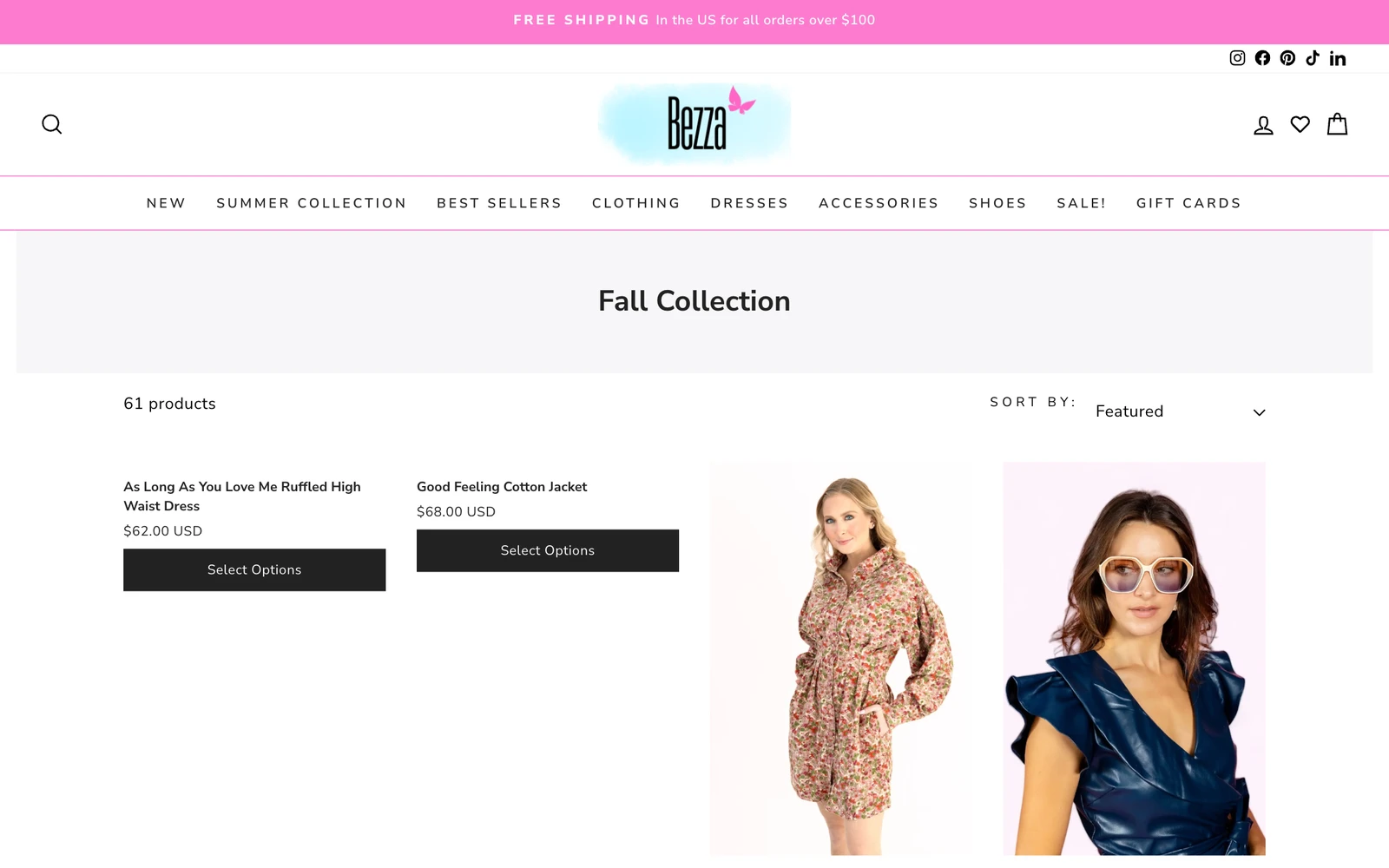
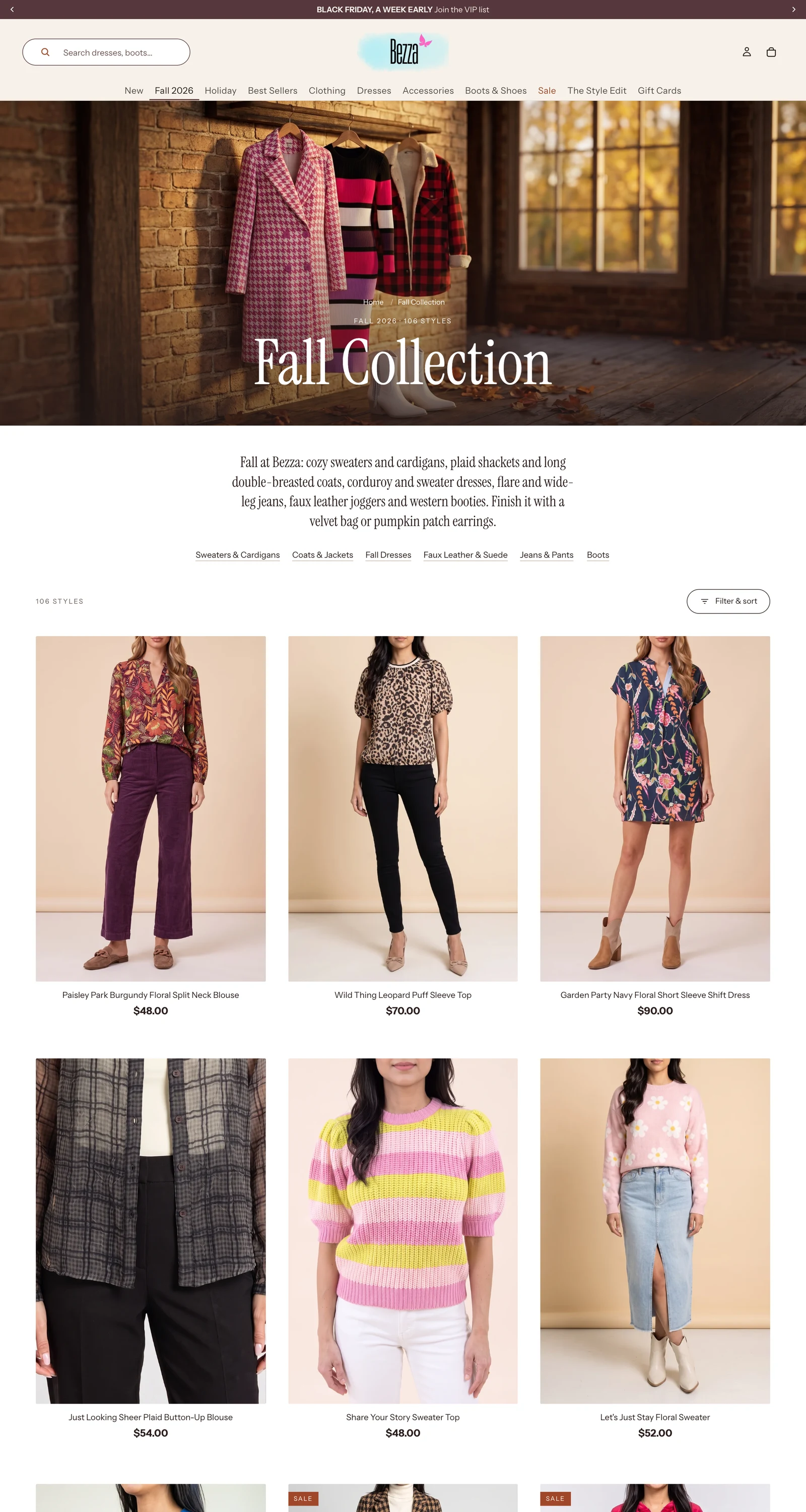
How do I create a Shopify collection page that browses well?
- In your Shopify admin, go to Products, then Collections, then Create collection, and add products by hand or by a condition such as a tag.
- Give it a short description and an image, so a shopper knows what the edit is before scrolling.
- Make every product card show price, colour and stock without a tap.
- Keep the grid and filters usable with one thumb on a phone; two products per row is the usual choice.
- Put a new collection on your menu and home page, so shoppers can find it.
The real example
On a phone, and its image.
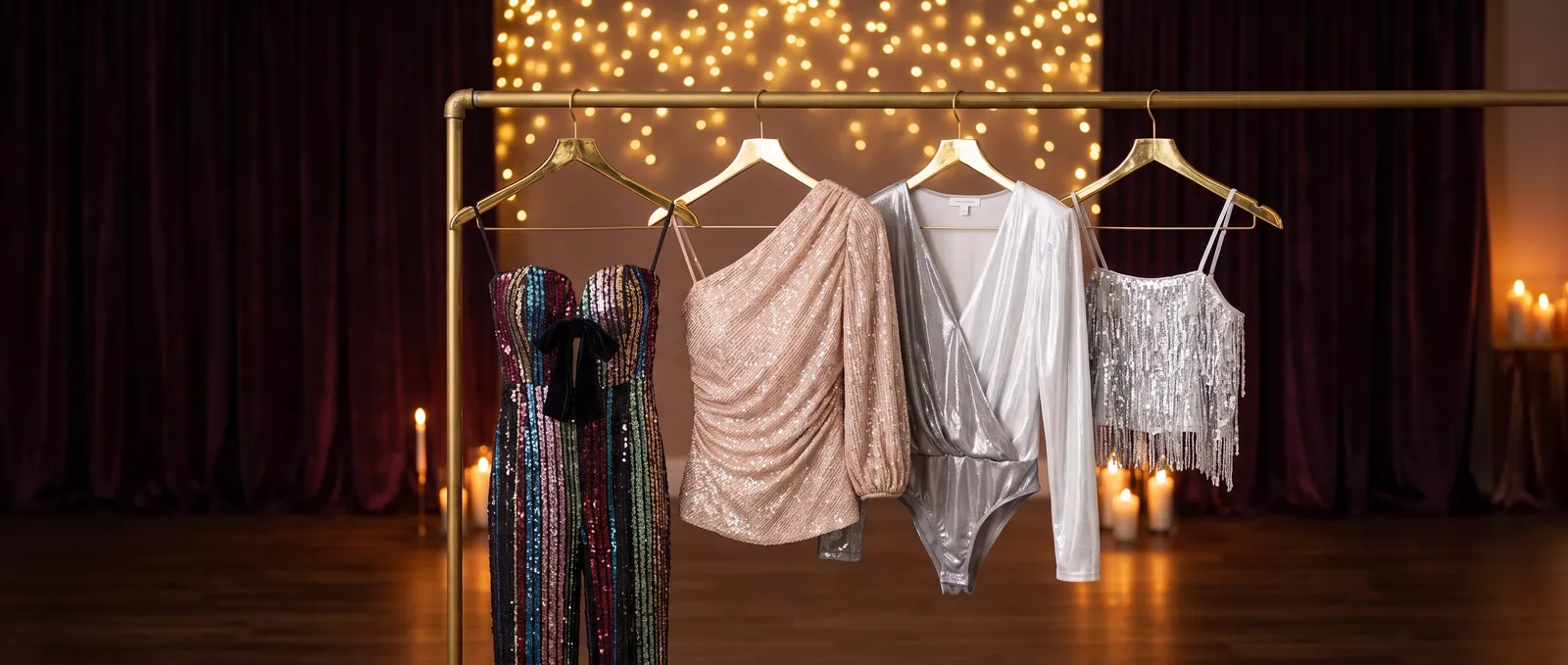
Shop Bezza’s Fall Collection on a phone, with a filter and a one or two per row switch, and the hero image on its Holiday collection.
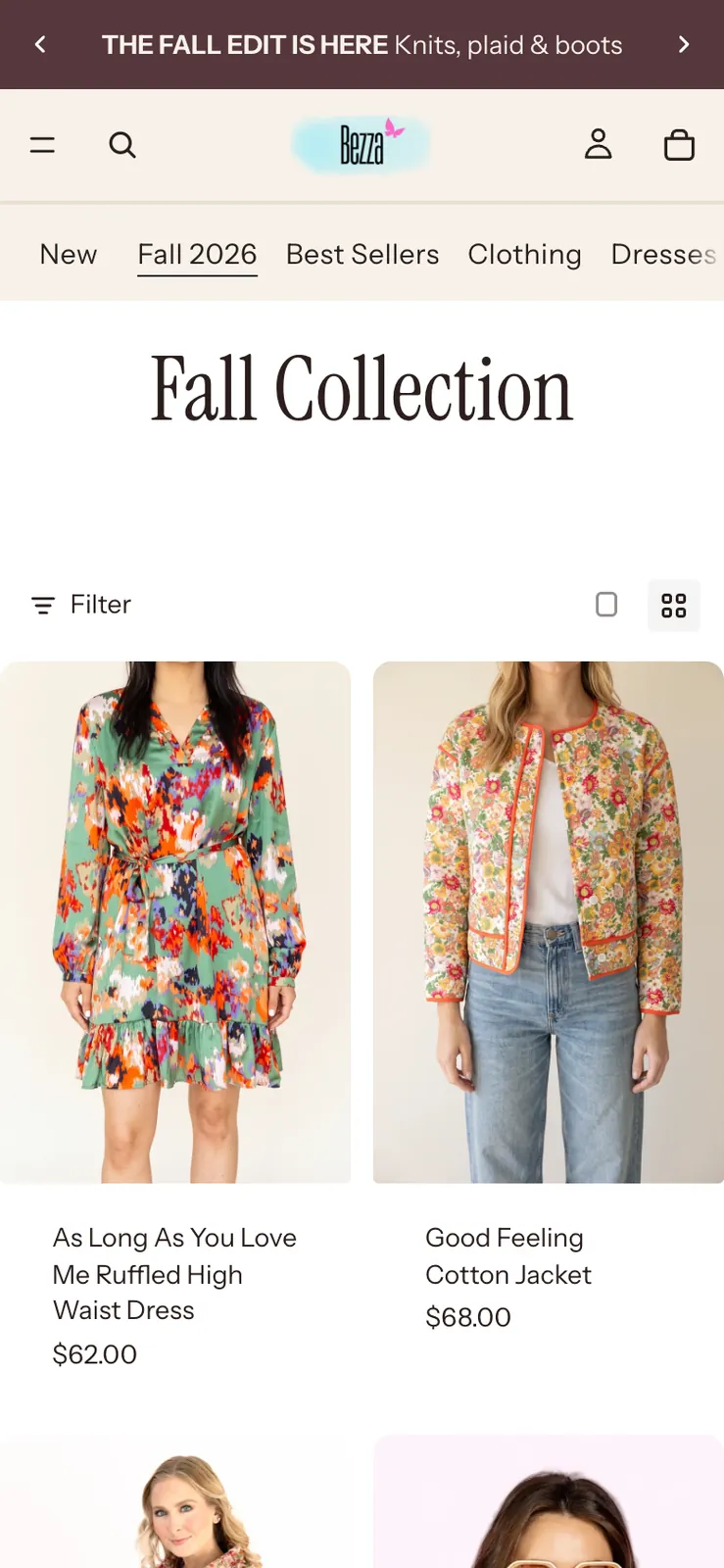
How the workflow runs
Launch it, then make it browse well.
Part oneLaunch a collection
- Make the collection from the products or the tag
- Write its description and search listing
- Make or pick its image
- Add it to the menu and the home page
What you set up
- Collection name
- Products (optional)
- Or every product with a tag (optional)
- Make an image for it
- Add it to the menu and home page
Then press Plan the launch
What you get
- A new collection from products or a tag
- Its description and search listing in the store's voice
- Optionally an image for it
- Optionally a place on the menu and home page
Part twoA collection page that browses well
- Render the collection at 390 and 1440 px
- Check what each card tells a shopper
- Propose a better card and grid
- Build it and compare
What you set up
- Which collection
Then press Render the collection
What you get
- A read of what each product card tells a shopper without tapping
- A better card and grid as a mockup on the store's own page, then built
What it changes
Launch a collection: Changes your store after your OKA collection page that browses well: Adds styles to your theme
- Launching creates the collection on your live store, with its description, search listing and, if you ask, an image and a place on the menu and home page.
- Each change is shown on its card before it is made.
- The browsing workflow adds styles to your theme for the product cards and grid, after your yes.
What it doesn’t do
- Doesn’t change your products’ prices or stock.
- Doesn’t rewrite your theme’s own files in the App Store version: card and grid changes are added as styles.
- Doesn’t make any change you haven’t seen on its card first.
Questions
Shopify collection pages, answered.
- How do I create a collection page on Shopify?
- In your Shopify admin, go to Products, then Collections, then Create collection, name it and add products by hand or with conditions such as a tag. Shopify gives it a page of its own.
- How do I add filters to my Shopify store?
- Install Shopify’s Search & Discovery app and choose the filters there, such as price, availability, product type and options like colour and size. Themes that support filtering show them on collection pages.
- How do I launch a new collection on Shopify?
- Make the collection, give it a description, a search listing and an image, then add it to your menu and home page. Store Designer’s launch workflow does those four steps and shows each change before it makes it.
- How many products should a collection page show per row on mobile?
- Two per row is the usual choice on a phone: big enough to see the product, small enough to compare. Shop Bezza shows two, with a switch to one.
- How do I add collections to my Shopify homepage?
- In the theme editor, add a featured collection or collection list section to the home page and choose the collection. The launch workflow can add a new collection to the home page and menu for you.
- Should a new collection get its own banner and description?
- Yes: a short description and an image tell a shopper what the collection is before they scroll. The launch workflow writes the description and search listing and can make or pick the image. Read our collection SEO guide.
Related
Launch a collection that browses well.
Install Store Designer, then start with Plan the launch.
Free to explore. Saving needs Pay as you go, $10 per 30 days