Complete the look on Shopify: complementary products for every item.
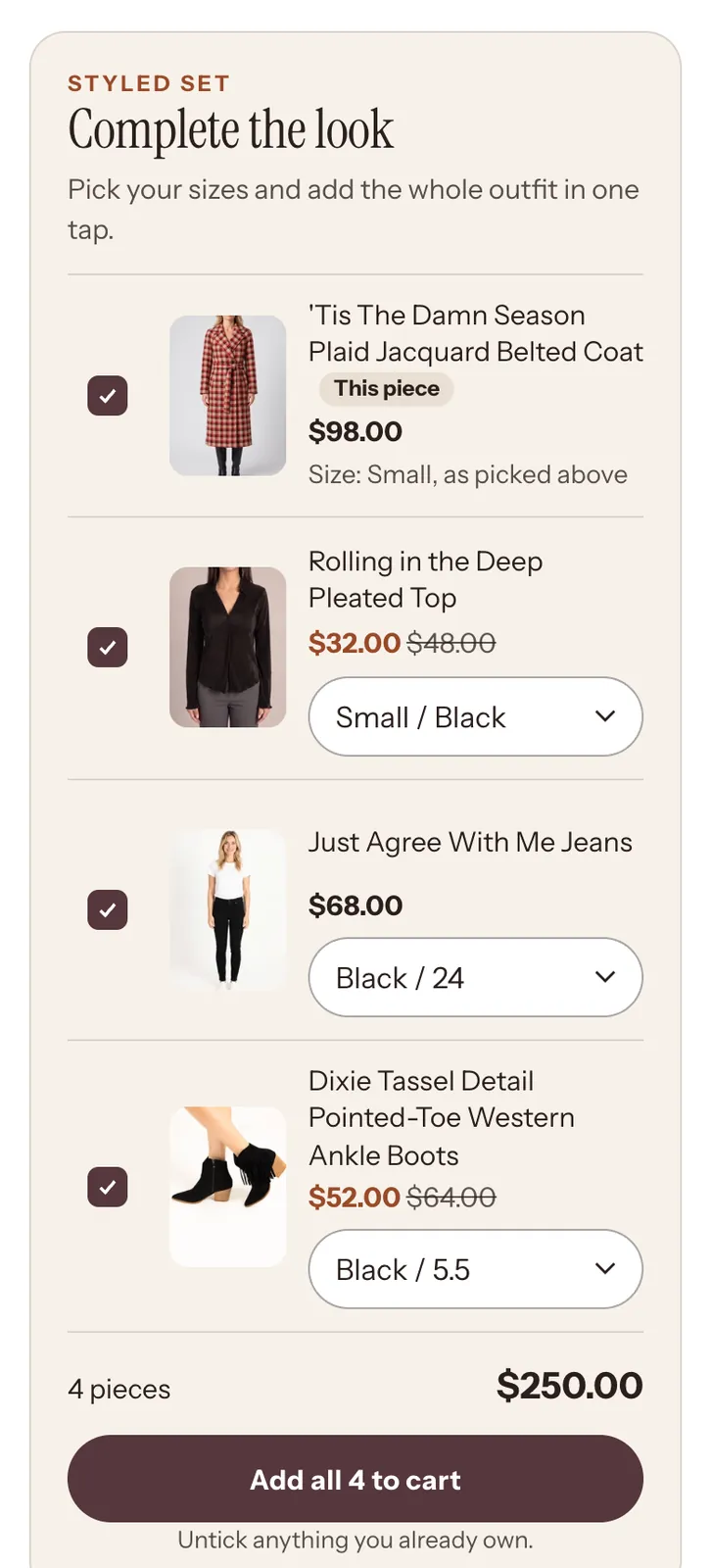
Each product gets the pieces that finish its outfit, shown by Search & Discovery as Complete the look.
Store Designer reads each product and what you sell beside it, shows you every pick on one card, and sets them as Shopify complementary products when you press.
Free to explore. Saving needs Pay as you go, $10 per 30 days
How do I add complementary products in Shopify?
- Install Shopify’s free Search & Discovery app.
- In its recommendations, choose a product and add its complementary products.
- Make sure your product page shows them: themes do this with a complementary products block.
- Pick pieces that finish the item (a layer, a bottom or shoes, an accessory), not near copies of it.
- For a whole catalogue, Store Designer picks them for each product, shows every pick on one card and sets them when you press.
The real example
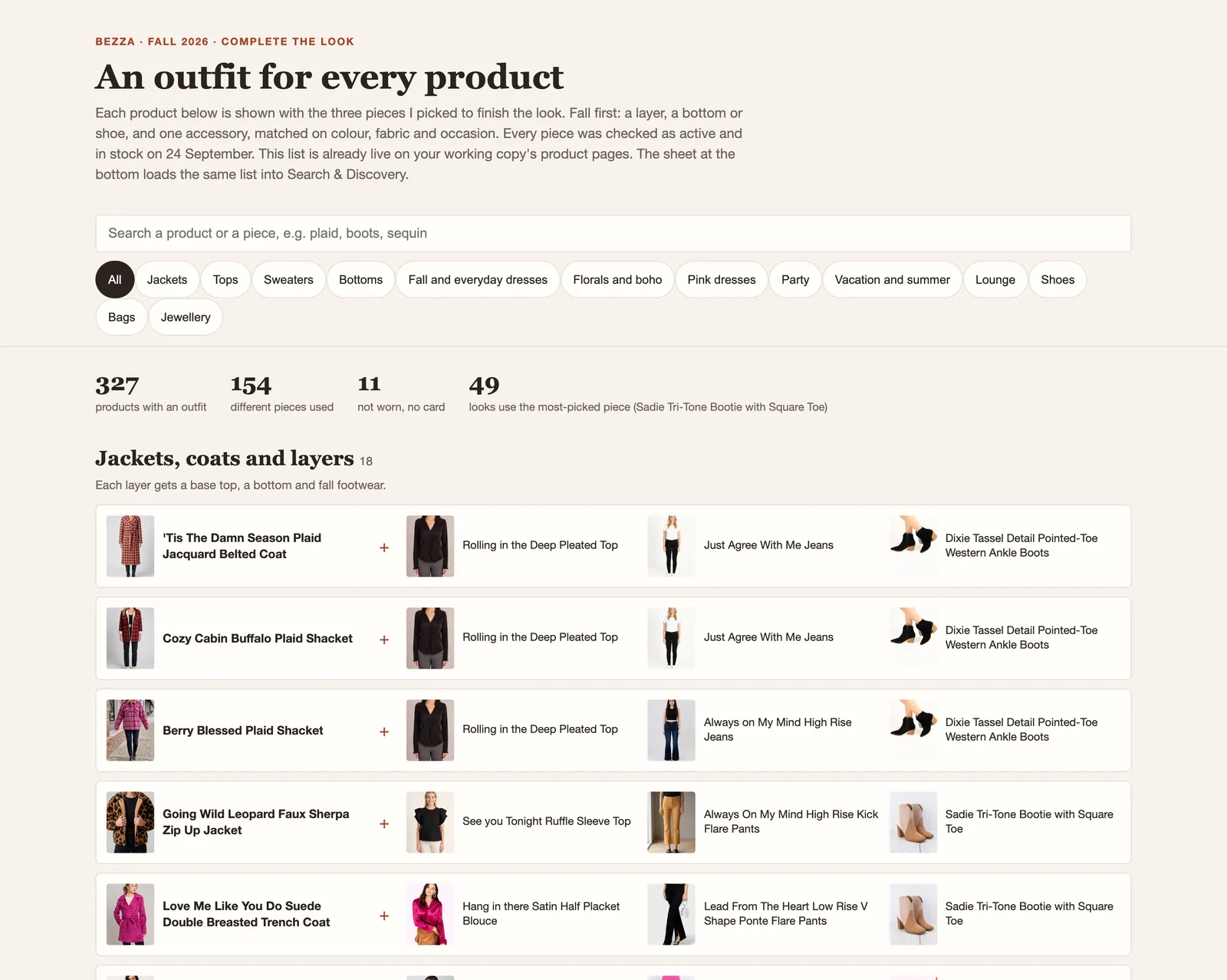
An outfit for every product.
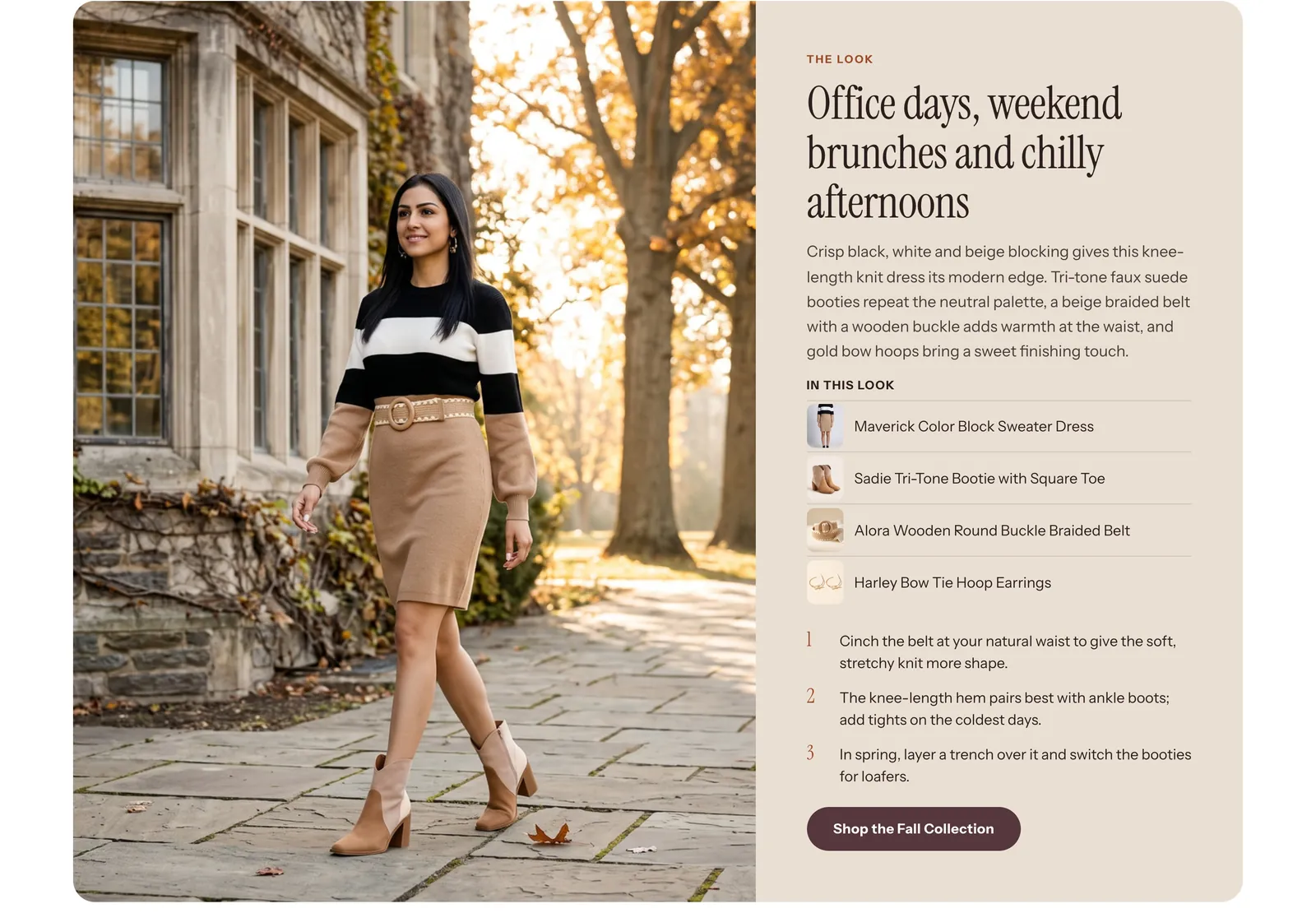
The board behind Shop Bezza’s looks: 327 products, each with the pieces that finish it. How the picks look on the product page is up to the theme; this is Shop Bezza’s.
How the workflow runs
Four steps, and nothing set until you press.
- Read each product and what you sell beside it
- Pick the pieces that go with each one
- Show you every pick on one card
- Set them when you press
What you set up
- Products (optional)
- Or a collection (optional)
- Picks per product
Then press Pick the looks
What you get
- Complementary 'Complete the look' product picks per product (shown by Shopify Search & Discovery)
What it changes
Changes your store after your OK
- Sets the complementary products on each product you picked, the list Shopify Search & Discovery shows.
- Every pick is shown on one card first, and nothing is set until you press.
What it doesn’t do
- Doesn’t create bundles, discounts or a combined price.
- Doesn’t change how your theme displays the picks: that is your theme’s complementary products block.
- Doesn’t change your products, prices or stock.
Questions
Cross-selling on Shopify, answered.
- How do I add complementary products in Shopify?
- Use Shopify’s Search & Discovery app: in its recommendations, choose a product and add the products that go with it. Your theme then shows them on the product page.
- How do I add frequently bought together on Shopify?
- For pieces shown together on the product page, set complementary products in Search & Discovery; for a bundle with one price or a discount, you need a bundles app. Store Designer does the first: it picks and sets complementary products, not bundles.
- How do I cross-sell on Shopify?
- Show the pieces that go with a product where the shopper is deciding, on the product page. Complementary products in Search & Discovery are Shopify’s own way to do that.
- What is the difference between related and complementary products in Shopify?
- Related products are similar items, which Shopify picks automatically and you can adjust; complementary products are items that go with the product, which you choose yourself. A dress’s related products are other dresses; its complementary products are the boots and belt.
- How many complementary products should each product have?
- Three is a good place to start: enough to finish the look without crowding the page. Store Designer asks how many picks you want per product.
- Does Shopify Search & Discovery show Complete the look?
- Search & Discovery stores the complementary products, and your theme shows them on the product page under the heading the theme gives that block, which you can call Complete the look.
- Will it change my live store?
- Only when you press: every pick is shown on one card first, and only then are they set on your products. Exploring is free; setting them needs Pay as you go.
Related
An outfit for every product.
Install Store Designer, then start with Pick the looks.
Free to explore. Saving needs Pay as you go, $10 per 30 days