Shopify product page design that sells.
A buy box a shopper trusts on a phone: price, stock, delivery and returns beside Add to cart, and a button a thumb can hit.
Store Designer measures your page, shows two directions on your own product, and makes the one you pick a design block for the page.
Free to explore. Saving needs Pay as you go, $10 per 30 days
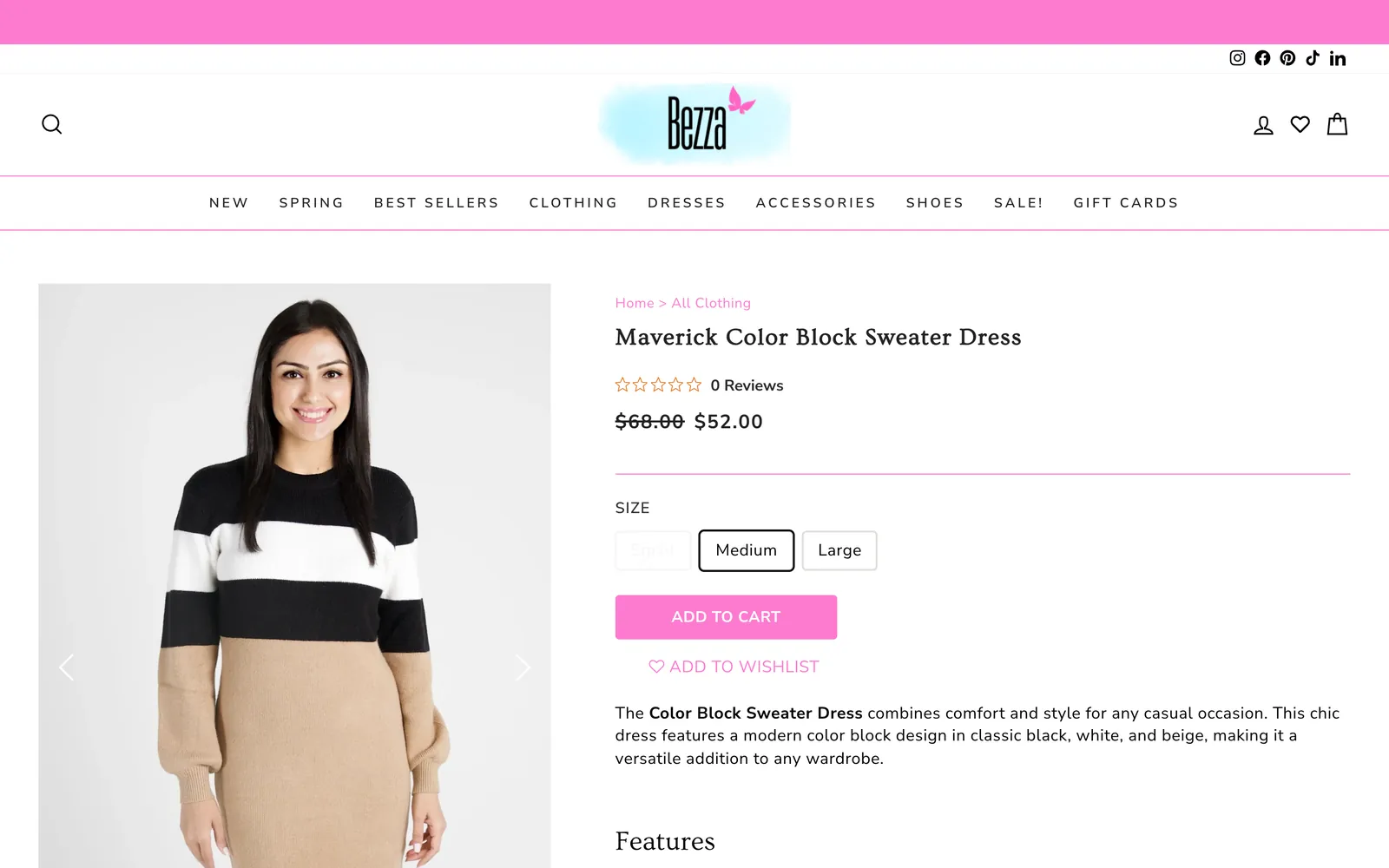
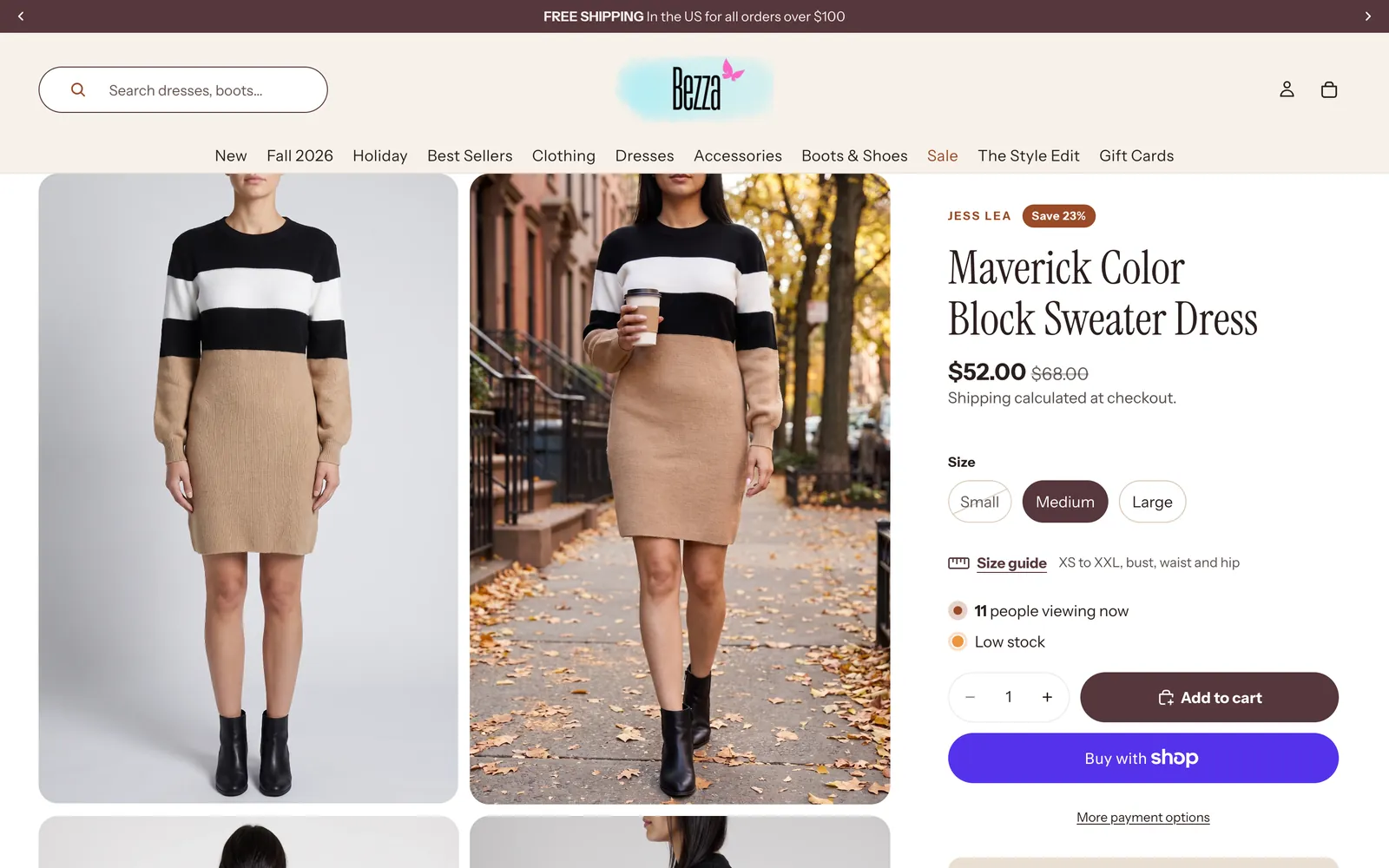
What should a Shopify product page include?
- Price and stock a shopper can read at a glance, on a phone as well as a desktop.
- Delivery cost, delivery time and returns right next to Add to cart, not only in the footer.
- An Add to cart button a thumb can hit, in reach on a phone screen.
- Photos that show the product clearly, and sizes with a size guide where sizes apply.
- A check at phone and desktop widths (390 and 1440 px) before the change goes live.
The real example
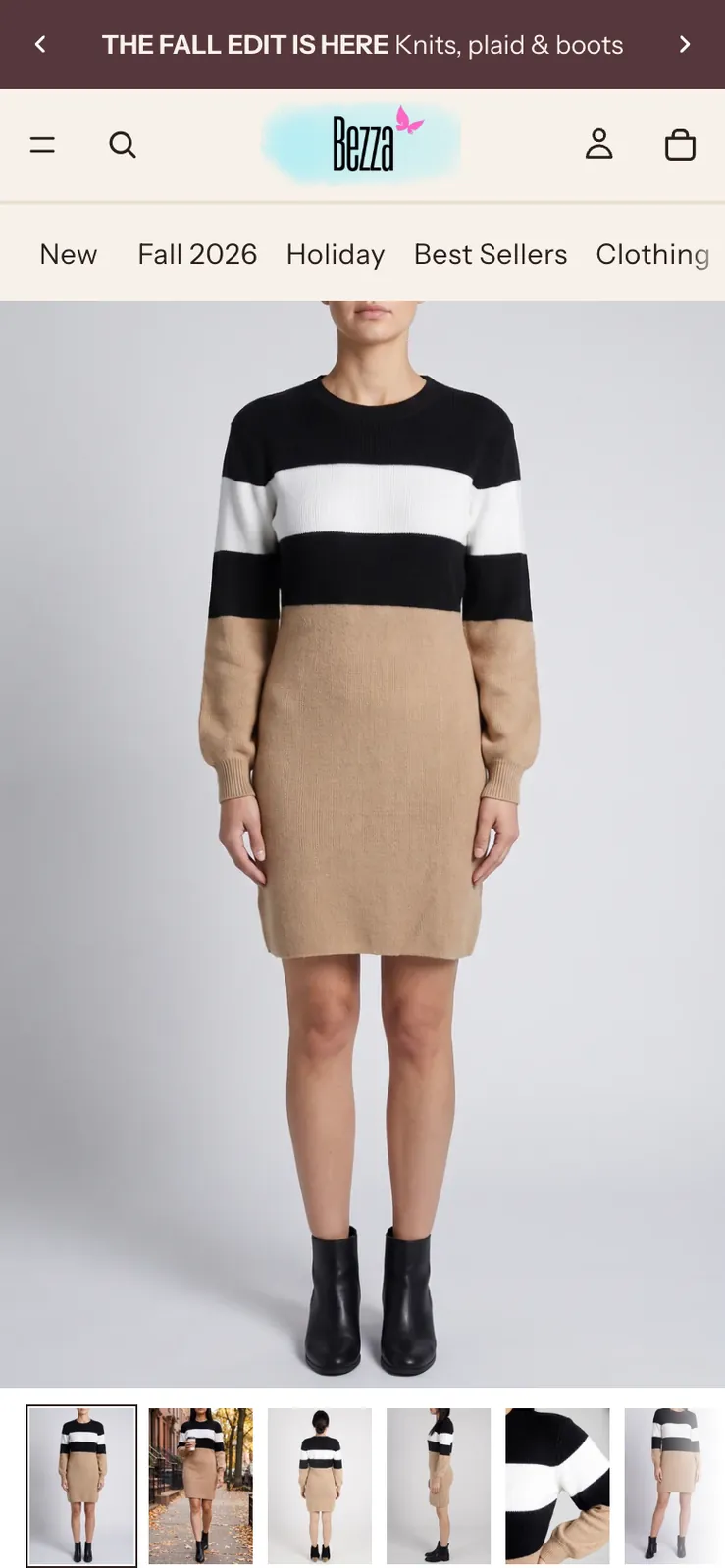
One product page, on a phone.
The same Shop Bezza product on a phone today: the studio photo fills the first screen, with the street, back and detail photos in a row beneath it.
How the workflow runs
Four steps, and your pick in the middle.
- Measure the product page at 390 and 1440 px
- Show two directions for the buy box
- Make the one you pick a design for the page
- Show it before and after on your page
What you set up
- Which product
Then press Measure the page
What you get
- A measurement of what stands between a shopper and Add to cart at 390 and 1440 px
- Two buy-box directions as mockups on the store's own page
- The picked buy box built, with before and after
What it changes
Adds a design block
- Adds the buy box you pick as a design block for your product page.
- It waits for your pick before it makes anything.
What it doesn’t do
- Doesn’t edit your live theme files in the App Store version: the buy box is added as a design block.
- Doesn’t change your prices, stock or product data.
Questions
Shopify product pages, answered.
- How do I customize my Shopify product page?
- Open Online Store, then Themes, then Customize, and pick the product template to move sections and blocks. To change the buy box itself, Store Designer measures your page, shows two directions on your own product and makes the one you pick a design block.
- How do I design a Shopify product page that converts?
- Put everything a shopper needs to decide beside Add to cart: price, stock, delivery, returns and a button a thumb can hit. Then check the page at phone and desktop widths, because most problems only show on one of them.
- What should a Shopify product page include?
- A clear price and stock, delivery and returns next to Add to cart, photos that show the product, sizes with a size guide, and an Add to cart button within reach on a phone.
- How do I edit a Shopify product page without code?
- Use the theme editor’s sections and blocks, or describe the change to Store Designer. It makes the buy box you pick as a design block you add to the page, so there is no code to write.
- What makes the best Shopify product pages?
- The best product pages answer the shopper’s questions where they decide: price and stock at a glance, delivery and returns beside the button, photos that show the product, and a button a thumb can hit. Read our product page optimization guide.
- Where should delivery and returns information go on a product page?
- Next to Add to cart, where the shopper decides, not only in the footer or on a policy page. That is part of the buy box this workflow designs.
- Will it change my live store?
- Not until you pick a direction and save it. Exploring is free; saving the design needs Pay as you go, and in the App Store version the buy box is added as a design block rather than written into your theme files.
Related
See your buy box before it goes live.
Install Store Designer, then start with Measure the page.
Free to explore. Saving needs Pay as you go, $10 per 30 days